
How to Compare Live Pages vs. Google Indexed Pages
Identify rendering gaps by comparing your live website against Google's indexed version side-by-side. Spot missing CSR elements instantly.
Modern websites often rely on Client-Side Rendering (CSR) to load content, but Googlebot primarily indexes the initial HTML response (SSR). This discrepancy can lead to "invisible" content that exists for users but not for search engines.
The Advanced GSC Visualizer allows you to audit this by placing your live page and Google's indexed version side-by-side to highlight the differences.
Step 1: Launch the Visual Viewer
Before starting a comparison, you must first launch the Visual Indexed Page Viewer.
- Prerequisite: Please refer to our guide on How to Visualize Indexed HTML Code to get started.
Once the viewer popup is open and showing Google's version of your page, proceed to the next step.
Step 2: Initiate the Live Comparison
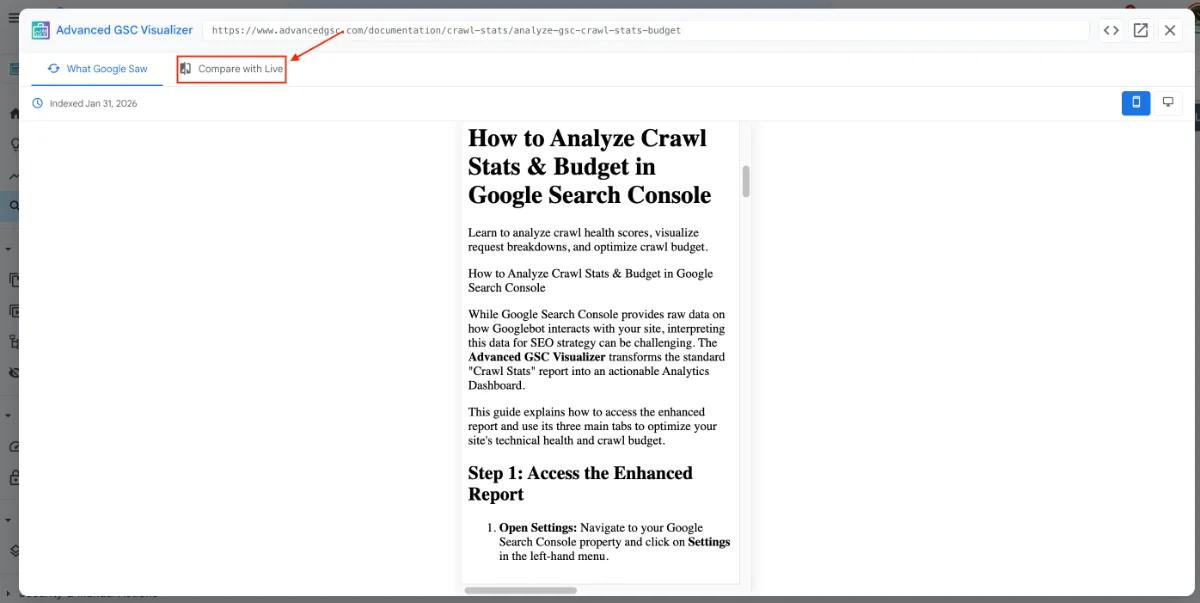
In the top menu bar of the viewer window, click the button labeled Compare with Live Page.
Step 3: Grant Permissions (Safety Check)
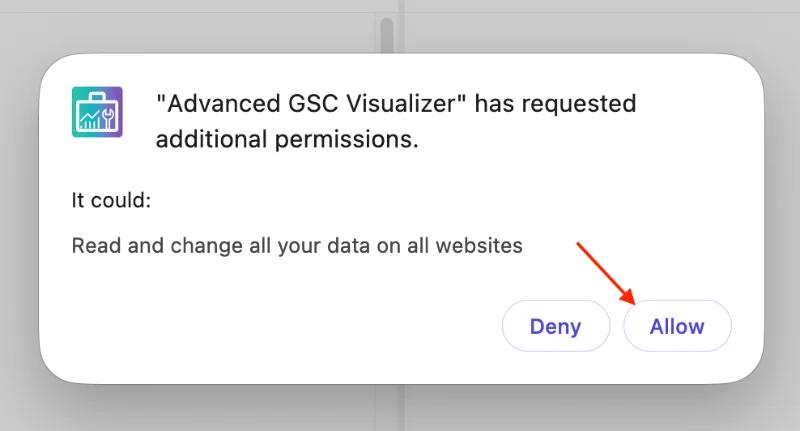
The extension requires permission to open a new tab to fetch your live website data. A prompt will appear asking for this access.
- Why is this needed? The tool needs to load your actual website in a background tab to capture the fully rendered content (including JavaScript-loaded elements).
- Safety Note: The extension only accesses the specific URL you are inspecting.
Click Allow to proceed.
Step 4: Automatic Page Capture
The tool will now perform an automated capture sequence:
- It opens your live URL in a temporary window.
- It automatically scrolls to the bottom of the page. This ensures that lazy-loaded images and dynamic JavaScript elements are fully rendered.
- It captures the final rendered state of the page.
Step 5: Analyze Visual Differences
Once the capture is complete, the viewer splits into two panels:
- Left Panel: Google's Indexed Version.
- Right Panel: Your Live Website.
Any elements that appear on the Live site but are missing from the Indexed version will be visually distinguishable. This is critical for identifying content that Google is failing to render.
Using Sync Scroll
To make visual comparison easier, look for the Sync Scroll checkbox in the control bar.
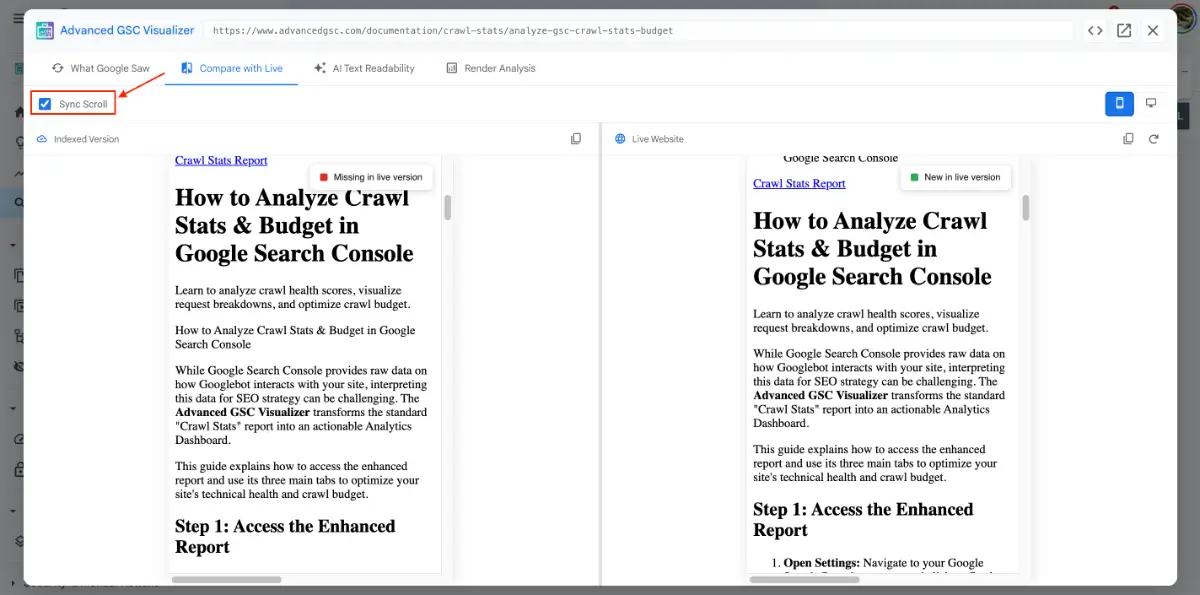
When checked, scrolling one panel will automatically scroll the other panel to the exact same position. This allows you to scan long pages quickly to spot missing sections or layout shifts.
Advanced: Code Diff Mode
For technical SEOs who need to analyze the underlying syntax, click the Compare Source Code button.
This switches the view from the visual render to a Code Diff View.
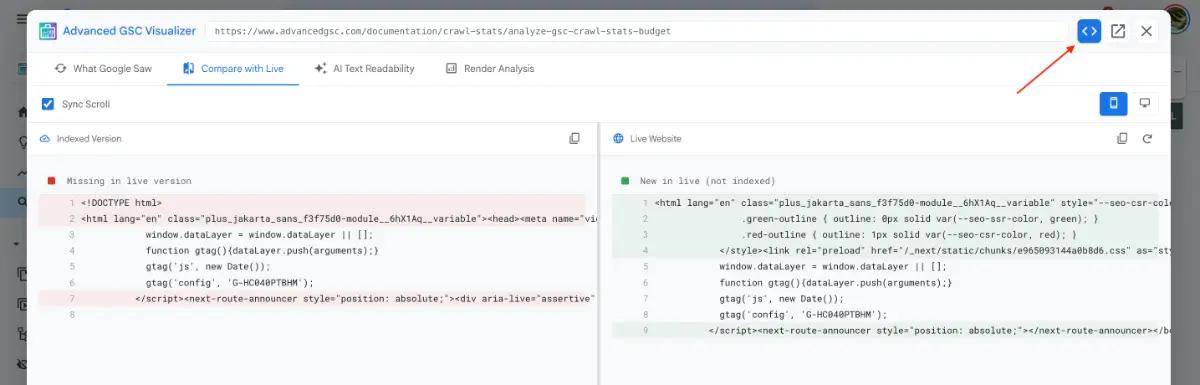
- Lines of code present in the Live version but missing from the Index are highlighted.
- Sync Scroll is also available in this mode, allowing you to match line numbers and code blocks effortlessly.